
Register an Online Account
Creating an online account gives you 24/7 access to your account details and some great self-service tools — all in one place.
You will need your account number and your name exactly as printed on your bill to complete registration. Have a recent statement on hand before you begin.
The registration form does not auto-save. If you navigate away or close your browser tab before completing all steps, you will need to start over. Set aside a few minutes to complete the process in one sitting.
- View meter consumption and electricity usage data
- View and pay your bills — including e-billing history
- Review your transactions and payment history
- Set up Auto Pay so your bill is handled automatically
- Add multiple accounts to a single profile
- Report and view power outages
Step-by-Step Registration Guide
-
1Open the registration form
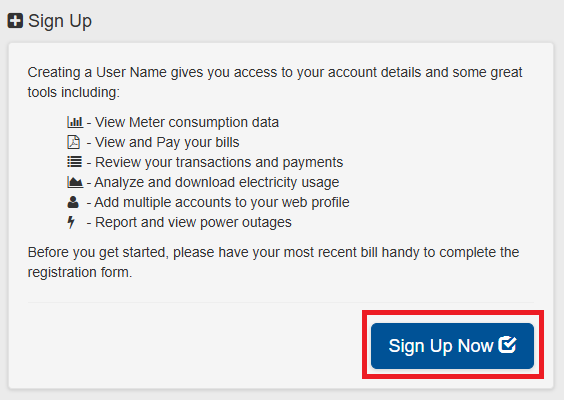
Visit portal.brpower.coop/app/register.jsp — the Web Access Registration form will open directly. You can also use the Create Your Account button at the top of this page.
-
2Complete the Web Access Registration form
Fill out all required fields. Here's what each field requires:
User NameCreate a username of your choice. Rules:- Letters, digits, and these special characters only: _ @ . -
- Must start with a letter or digit (not a special character)
- Maximum 120 characters, no spaces
Important: Your username cannot be changed after your account is created. Choose carefully.PasswordMust be 8–20 characters and include at least 2 of the following 3 types:- Letters (a–z, A–Z)
- Numbers (0–9)
- Special characters (e.g. ! @ # $ % ^ *)
Confirm PasswordMust match your Password field exactly.Forgot Password Security Question & AnswerChoose a question from the drop-down and enter an answer you'll remember easily — you'll need this if you ever forget your password.First Name / Last Name / Email Address / Confirm EmailEnter your name and email address. Confirm Email must match exactly.Phone Number / Mobile Phone NumberBoth fields are optional.Account NumberEnter your account number in this exact format: 00010001-01 — include the dash.Your account number is printed on your bill. See the example below.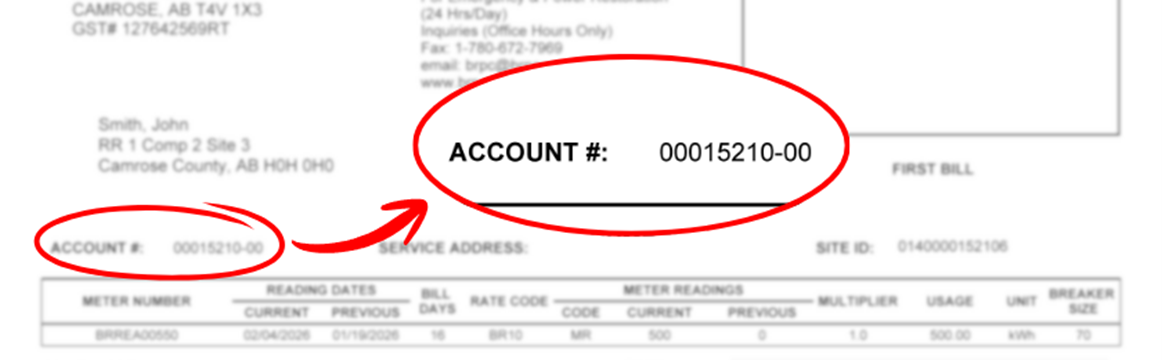 Add enough leading zeros before your account number so there are ten numbers in total.
Examples:
Account number 3452.02 would be entered as 00003452-02
Account number 78456.03 would be entered as 00078456-03Name as Printed on Your BillType your name as it appears on your bill — including commas.
If you have an & symbol, change this to the word And. Example: Smith, John & Smith, Mary would be entered as Smith, John And Smith, Mary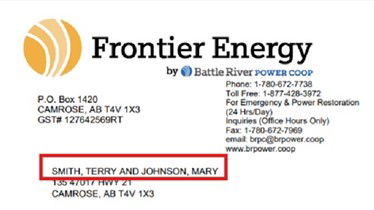
-
3Read and accept the Terms of Use
Click the Terms of Use link to read them. They will open in a new browser tab so your registration form will stay open and your information will not be lost. When you're done reading, simply close or switch back to the registration tab to continue.

Once read, click the checkbox next to "Accept". The checkbox must show a checkmark to proceed.

With the form complete and Terms of Use accepted, click the "Sign Up Now" button to submit your registration.

-
4Confirm your email address
You will receive an email with the subject line "BPRC web access request: please confirm your email address". Open it and click the "Confirm My Email Address" link to activate your account.
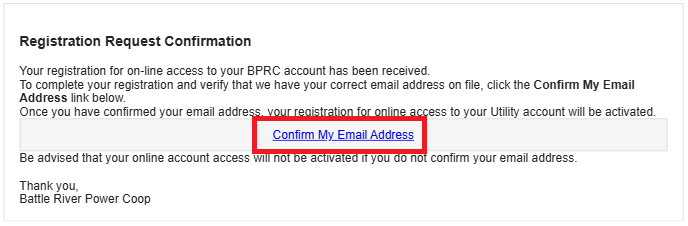 Tip: If you don't see the email within a few minutes, check your spam or junk folder.
 -
5Watch for your registration complete email
After clicking the confirmation link, you'll receive a second email with the subject line "Your BPRC Account Registration Complete". This confirms your account is active.
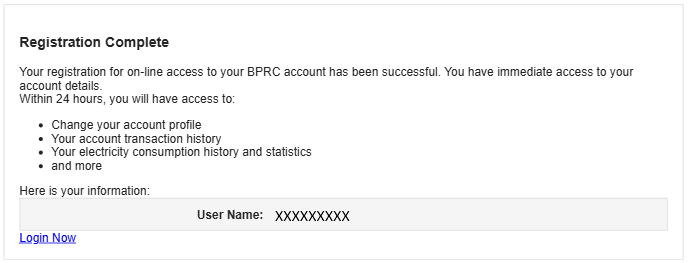
You can now sign in at portal.brpower.coop/app/login.jsp using the username and password you created in Step 2.
Help & Frequently Asked Questions
PaymentsHow long does a payment take to process?
Make your payment 3 business days before your due date, and before 6:00 pm MST or it will be processed the following business day and may be considered late.
PaymentsIs there a fee for paying by credit card?
No. Battle River Power Coop does not charge a convenience fee for credit card payments.
PaymentsAre there late fees or penalties for partial payments?
You can pay a portion of your amount due, but penalties will still apply to any remaining unpaid balance. We recommend paying your full balance to avoid additional charges.
PaymentsCan I pay more than my current balance?
Yes. Any overpayment will be held as a credit on your account and applied to future bills.
PaymentsCan I reverse or cancel a payment after submitting?
Some payments can be reversed. If you made an error in your account number or payment amount, contact Battle River Power Coop as soon as possible. You may also want to contact your credit card company to attempt to stop the payment on their end.
PaymentsWhat if my payment fails or my card is declined?
Try using a different card. If you believe your card is being declined in error, contact Battle River Power Coop for assistance.
PaymentsDo you accept Interac e-Transfers?
No, Interac e-Transfers are not accepted at this time.
PaymentsWhat's the difference between Quick Pay and my bank's online banking?
Quick Pay is Battle River's own payment tool — you pay directly by credit card or Visa/Mastercard debit with no extra steps. Your bank's online banking is a separate system. To set up bill payments through your bank, contact your bank directly and search for Battle River Power Coop or Battle River Rural Electrification Association Limited.
AccountCan I set up automatic payments so I don't have to make a payment every month?
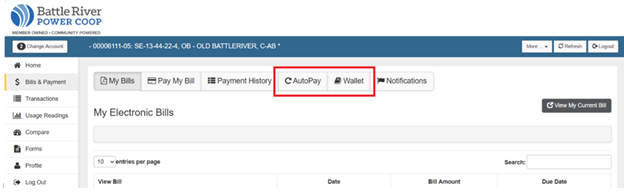
Yes — but you'll need a free online account to do it. Once you've registered for an online account, sign in and go to Bills & Payment, add your payment method to your Wallet, then set up Auto Pay. Your bill will be paid automatically each month.
SecurityIs my payment information secure?
Yes. Payments are processed by KUBRA, Battle River Power Coop's approved payment processor, who maintains the highest standards of payment security:
- Encrypted transmission: All payments are processed over secure, encrypted connections.
- PCI DSS 4.0 compliant: Credit card, PINless debit, and ACH payments are handled in a fully PCI-compliant environment.
- Tokenization: Your actual payment details are never stored — a secure token is used for processing instead.
- Restricted access: Production systems are strictly limited to authorized KUBRA personnel.
For more details, visit kubra.com/about-us/security.